Digital notes are becoming the default for students, and it is easy to see why: they are convenient, simple to organise, and accessible from anywhere. The good news is that a notebook full of handwritten pages does not have to stay on paper. With a phone camera and a free tool, you can turn those pages into editable digital text in a few minutes.
This guide walks through a simple, four-step process for digitising handwritten notes — with practical tips to get the cleanest results. If you would rather see the wider picture first, our companion guides on how OCR tools turn images into text for assignments and digitising scientific literature are worth a read.
Why digitise your handwritten notes?
Handwriting is great for learning — writing things out by hand genuinely helps memory. The limitation is what happens afterwards. Paper notes can only be in one place, they cannot be searched, and a lost or coffee-stained notebook takes your revision with it. Turning them digital fixes all of that:
- They are searchable. Find a definition or date in seconds instead of flicking through pages.
- They are backed up. Stored in the cloud, your notes survive a lost bag or a dead laptop.
- They are editable and reusable. Tidy them up, reorganise them, and pull quotes straight into your assignment drafts.
- They are accessible. Read them on any device, resize the text, or have them read aloud — useful for revision on the move.
The 4 steps to convert handwritten notes to digital text
The whole process comes down to four steps. Here is each one in detail.
Step 1: Photograph the handwritten page
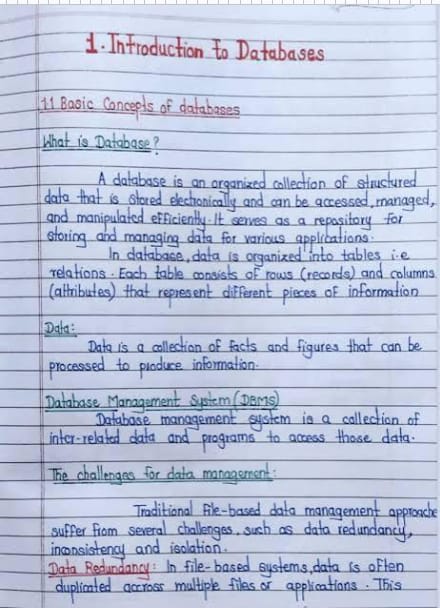
Start by capturing a clear picture of your page with your phone camera. A good photo makes everything that follows easier, so aim for a high-resolution, well-lit shot that keeps the whole page inside the frame with no fingers or shadows across the text. The sharper the image, the more accurately a tool can read it.
Step 2: Choose a reliable image-to-text (OCR) converter
Next, find a trustworthy image-to-text converter. These tools use OCR (optical character recognition) to read the text inside an image or handwritten page and hand it back in an editable format. Plenty are available online for free, but they are not all equal, so it helps to check that the tool:
- can handle several images at once;
- supports a range of languages;
- accepts common image formats (JPG, PNG, JPEG, TIF and more);
- offers free, quick access without forcing a sign-up.
For this walkthrough we used Image to Text by Prepostseo, which is free to use and ticks all of the boxes above.
Step 3: Upload the photo and extract the text
Once you have picked a tool, upload your photo. Most image-to-text converters give you a few ways to do this — drag and drop, uploading from your device, or pasting an image URL. Add your page, then press the Extract Text button to start the conversion.
Step 4: Review, copy or save your digital notes
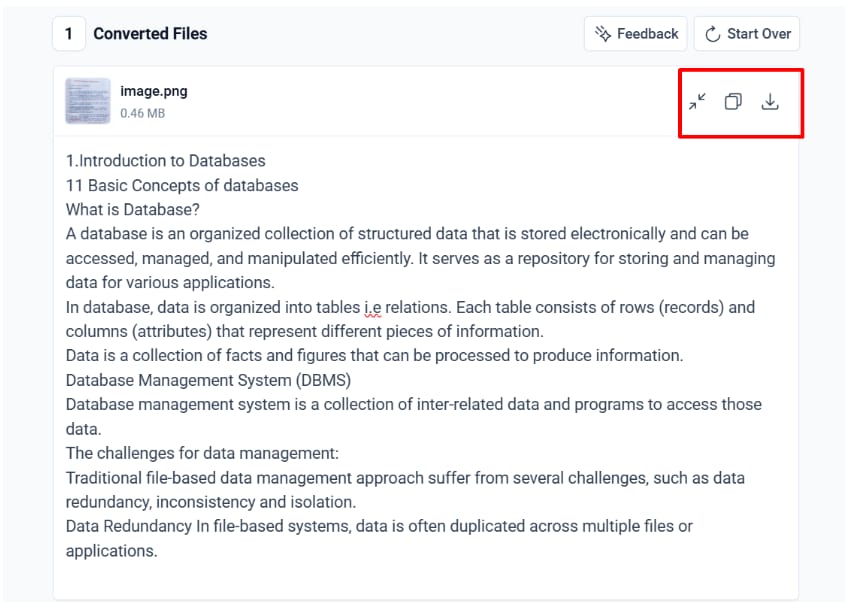
Within a few seconds, the converter returns all the text it read from your page in an editable format. Give it a quick read to correct any characters it misjudged, then use the Copy or Download option to save your notes — usually as a plain-text (.txt) file you can drop into any notes app or document.
That is all there is to it: photograph, convert, extract, and save. Your handwritten page is now a digital note you can search, edit and back up.
Tips for sharper OCR accuracy
OCR accuracy depends heavily on the quality of the image you feed it — especially with handwriting. A few small habits make a big difference to how clean the extracted text is.
| Factor | Do this | Avoid |
|---|---|---|
| Lighting | Bright, even, natural light | Shadows and glare across the page |
| Page position | Flat page, camera straight above | Curled pages and steep angles |
| Handwriting | Dark ink, clear spacing | Faint pencil and cramped words |
| Framing | One page per photo, full page in frame | Two pages at once or cut-off edges |
Making the most of your digital notes
Once your notes are text, they become a lot more useful. You can restructure them into revision summaries, search across a whole module in one go, and reuse key points in your own drafts. A few free student tools pair naturally with digitised notes:
- Rework clumsy phrasing into your own words with the paraphrasing tool.
- Tidy grammar and typos with the grammar checker.
- Track how much you have written with the word counter.
- Build tidy references for anything you cite with the citation generator.
One note on academic integrity: digitised notes are a study aid. When it comes to your assignment, always write in your own words and cite the sources your notes came from — a quick pass through our pre-submission checks helps keep everything above board.
Related guides
- How OCR Tools Help Students Turn Images into Text
- How Scientific Literature Can Be Digitised Using Technology
- Free Academic Templates: The Student Library
- Exam Revision Strategies: Active Recall
- How to Build an Assignment Planner
- A College Assignment Tracker (Google Sheets)
- Dissertation Timeline: How to Plan Your Months