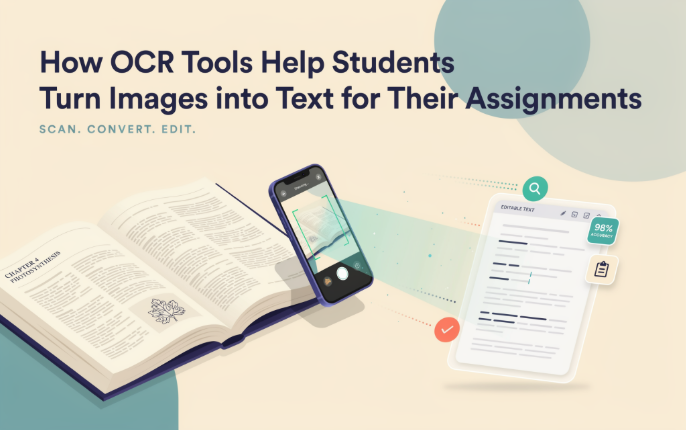
A big part of assignment work is not the writing itself. It is collecting and typing out information from books, printed handouts, and old notes. This tough task drains students’ energy before even starting the assignment writing. It also consumes valuable time that could be spent actually crafting and structuring the work.
Accuracy is another issue that students face while typing. A study of a large student population revealed that even very good typists made mistakes in about 12% of their keystrokes. OCR tools are changing this by increasing the efficiency of students completing assignments and speeding up the research process. In this blog, we’ll walk you through how OCR tools can help students extract editable text from printed materials and finish assignments faster.
What Is an OCR Tool and How Does It Work?
OCR is the abbreviation for Optical Character Recognition. It is a technology that allows users to convert images to text within a few seconds. It reads the printed text from images or scanned pages and converts it to editable and copyable text in digital form. Students can access this technology through online tools named image to text converters.
When it comes to the working mechanism, there are a few steps in the process:
- Scanning — The tool scans the image using OCR technology and converts it into a simple black and white image. This creates a contrast between text and background.
- Segmentation — The tool breaks the page into smaller pieces, for example, lines, words, and individual characters.
- Pattern analysis — The next phase involves analyzing the shape and pattern of each character, curve, line, and angle that make up a letter.
- Pattern recognition — The tool matches these patterns against thousands of known characters in the database. It finds the closest letter or number for each shape, then creates the final text output.
Though it sounds like a lot of steps, all this happens in seconds.
How Can Students Extract Text From an Image Using an OCR Tool?
Using an OCR tool to convert images to text is quite a simple process. There are a lot of such tools available online. You can simply search for an image-to-text converter online and use it for free. Here is how the process works:
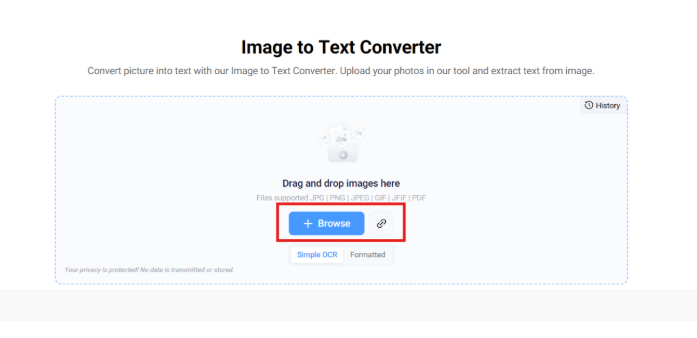
- Open the tool and upload your images by clicking on the “Browse” button. You can also paste the URL of the image if it is hosted online.
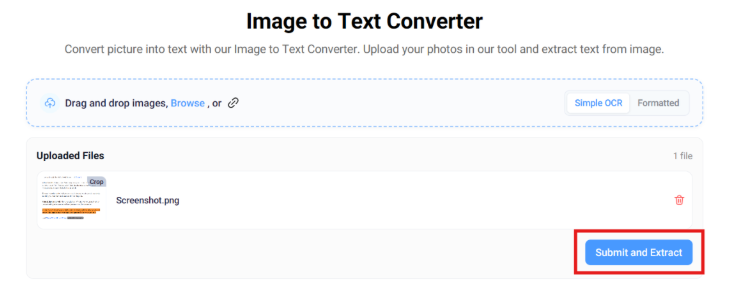
- Once uploaded, click on the “Submit and Extract” button.
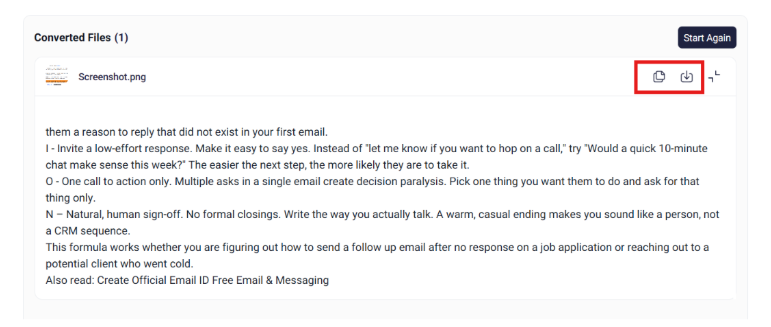
- The tool will extract the text from your image and paste it into a box below. You can copy the text to your clipboard or download a
.txtfile using the specified buttons.
OCR Tools and Their Benefits for Students
OCR tools do more than just convert images to text. They actually solve some real problems students face during assignment work. Here are four ways these tools help.
1. Make Text Editable
You cannot edit the information in an image directly. You cannot select it or copy any part of it, as it is embedded in the image. That’s where OCR tools help students a lot. They convert that image text into fully editable digital text.
Once it is editable, students can copy the sections they need, reword sentences, or paste the content directly into their assignment document. It makes the whole writing process much smoother than flipping back and forth between an image and a document.
2. Save Time and Energy
Typing notes from books or printouts is very time consuming. And it is tiring too, especially if you have to refer to multiple sources for a single assignment. OCR tools can do this job in seconds.
All you have to do is take a picture or upload a scanned page, and the tool pulls out the text for you. No manual typing required. This saves time and energy and prevents retyping information word for word. This saved time can then be used by students to actually write and structure their assignment, rather than just gathering raw text from various sources.
3. Provide Accuracy
Typing manually almost always leads to small mistakes. A missed word, a wrong number, or a skipped line here and there. With long assignments and lots of reference material, these errors add up.
This risk can be significantly reduced with the help of OCR tools. If the picture is clear, the text will be exactly as it is in the original picture. Such accuracy helps preserve the original information while reducing the chances of errors that usually occur during manual typing.
4. Offer Multilingual Support
Not all study material is in one language. Some university students deal with textbooks or notes in regional or foreign languages. Good OCR tools support multiple languages, not just English.
This means students working with material in Spanish, Arabic, or any other language can still extract text accurately. They do not have to translate or retype the content manually before using it in their work.
Final Words
OCR tools take away a big chunk of the manual work that comes before actual assignment writing. But the results depend on how you use the tool.
- Ensure your images are clean and clear, with no shadows or blur.
- Remove any unnecessary parts of the frame before uploading.
- Choose a tool that provides consistent and reliable results.
- Always read the privacy policy of the tool before uploading any sensitive information.
Once you get the extracted text, do not skip the proofreading step. Even small errors, if left unchecked, can affect the quality of your assignment.
When used correctly, OCR tools save time, reduce typing errors, and let students focus more on the actual writing and research part of their assignment instead of the tedious data entry that comes before it.